Share the plan, gather feedback.
A clean plan does more than show a price — it shows the customer you understand the job. Invite your crew, send a link a customer can open with no account, and keep the back-and-forth as comments right on the drawing.
Three ways to share
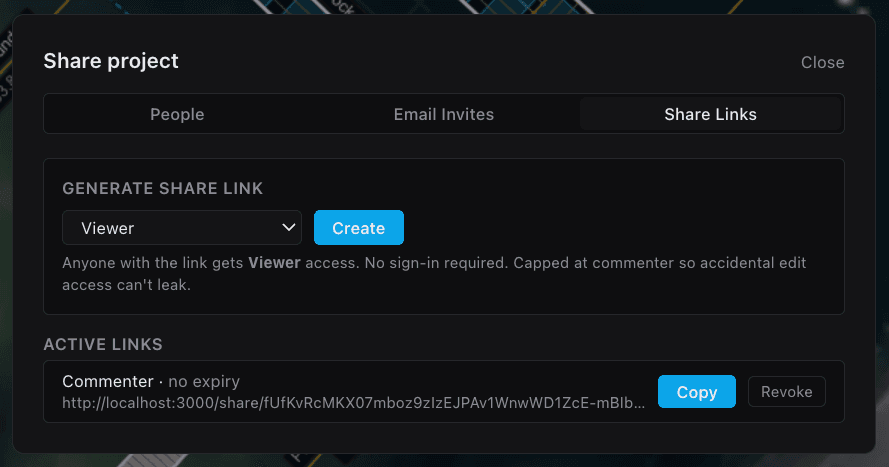
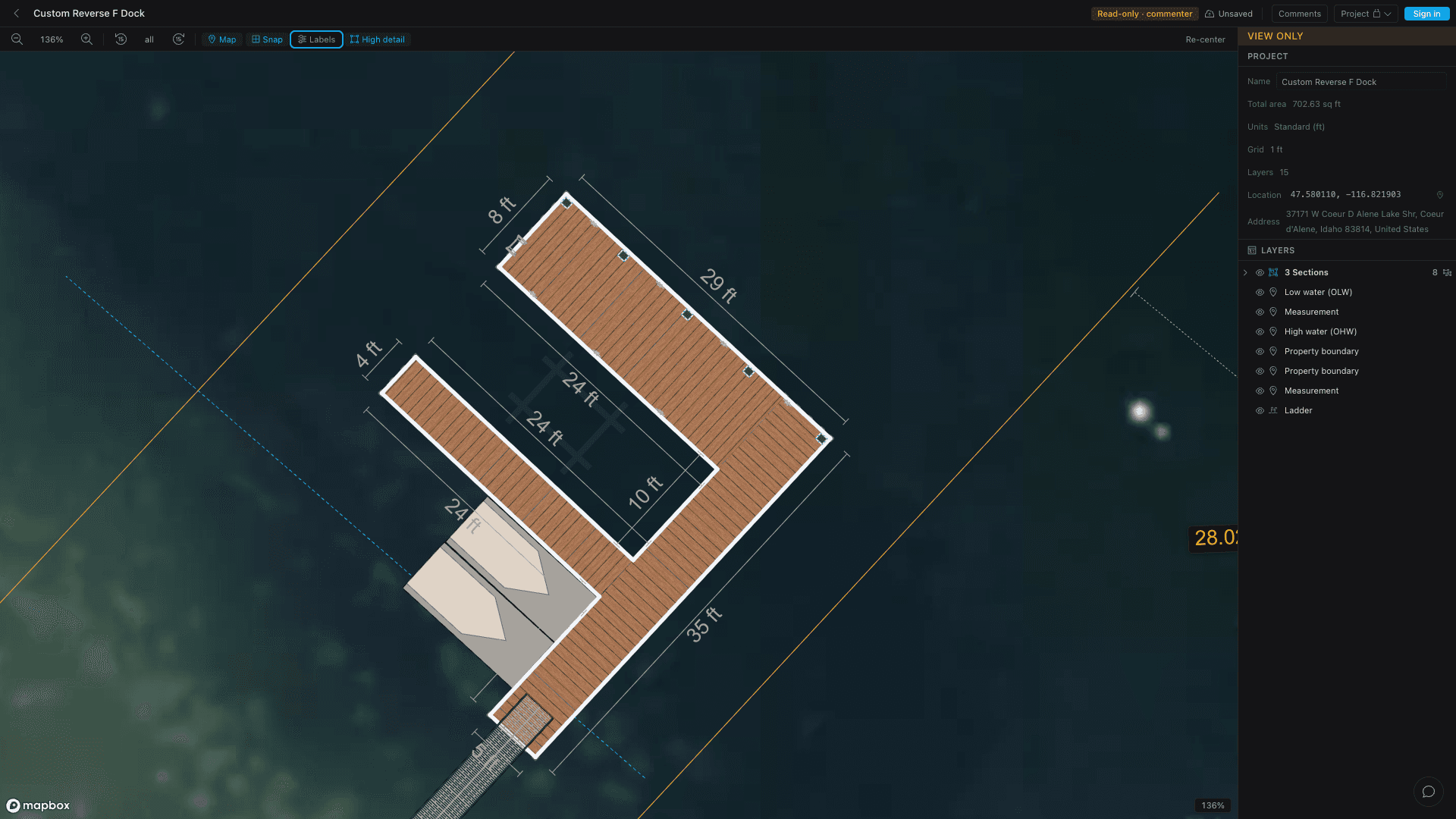
Pick the access that fits: bring teammates into the project, hand a customer or inspector a link with no sign-up, and let either leave comments on the plan. You can change roles or revoke a link at any time.
Inviting a teammate, creating a share link, and resolving a comment.
Invite by role
From Project menu → Share, invite teammates by email as an Editor, Commenter, or Viewer. Editors change the dock, commenters weigh in without touching it, and viewers just look.
Change someone’s role or remove their access whenever you need to.
No-account links
Generate a link anyone can open without an account — a read-only viewer link or a commenter link. Copy it into an email or text to a customer or inspector, and revoke it the moment you don’t want it live anymore.
- Invite teammates as Editor, Commenter, or Viewer; change or revoke access anytime.
- Send a no-account view or comment link a customer can open instantly.
- Links are project-scoped and revocable — sharing one plan exposes nothing else.
- Comments live on the plan; members resolve threads as decisions land.
Keep going
Site & aerial map
Anchor a project to its real location, drop it on a satellite basemap, and orient it to the shoreline.
Materials & products
Set default products once, override per element where it matters, and switch lumber for composite in a click.
Reusable templates
Save a dock layout once and drop it into any project — from the Add Dock wizard, a brand-new project, or a starter library shared across your whole shop.
Comments on the plan
Open the Comments panel from the top bar to discuss the plan in place. Share-link commenters can post with a name; members can resolve or delete threads as decisions get made — so feedback lives on the drawing instead of scattered across email and texts.