Quote a dock in 10 minutes — start to finish.
This is the whole job in one pass: set the site, draw the dock, drop in pilings and accessories, then let Dock Builder hand you a material take-off, a quote, and a permit-ready PDF. No CAD experience, no spreadsheets.
What you’ll do
Dock Builder keeps one model the whole way through — the dock you draw is the dock you price and the dock you submit. Draw it once and the take-off, the quote, and the exhibits all come from the same plan, so nothing drifts out of sync. Here’s the entire arc; the walkthrough video runs it end to end.
Set your site
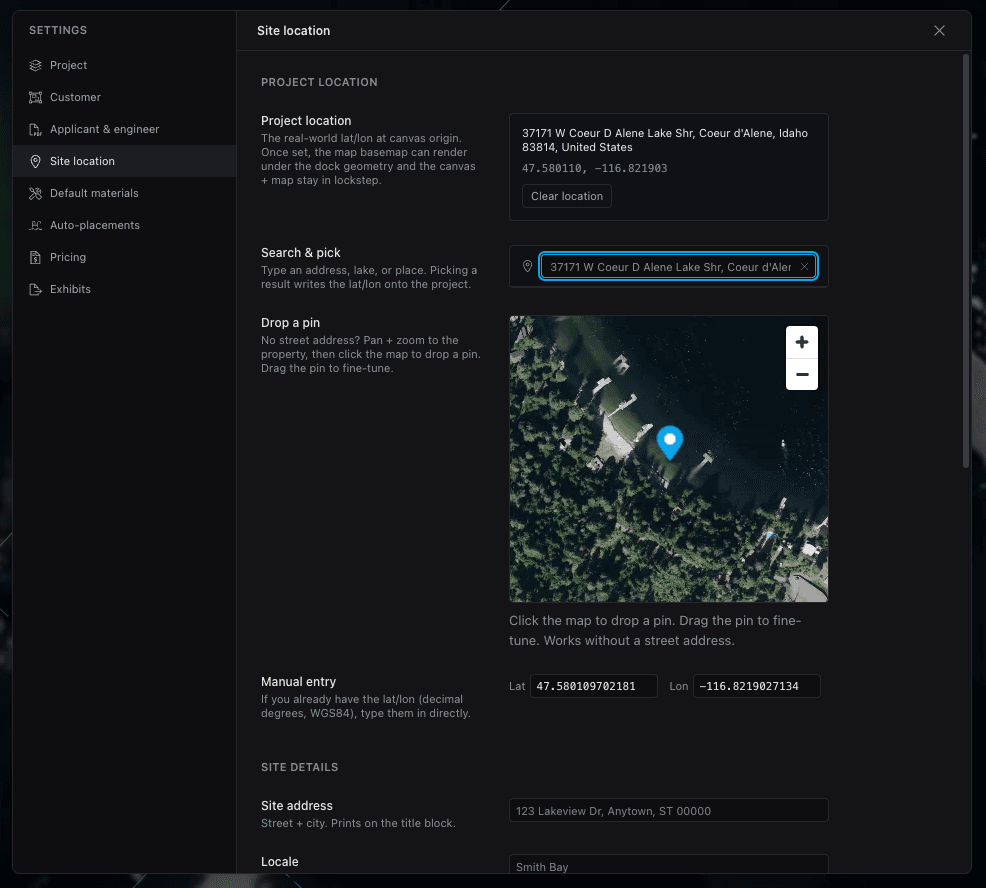
In Settings → Site Location, search an address or drop a pin to anchor the project to real-world coordinates. That unlocks the satellite basemap, GIS overlays, and map-pan — so the dock is drawn to true scale over the actual shoreline.
It’s optional — you can draw on a blank canvas — but starting from the real site makes every measurement, setback, and exhibit land right the first time.
Add the dock
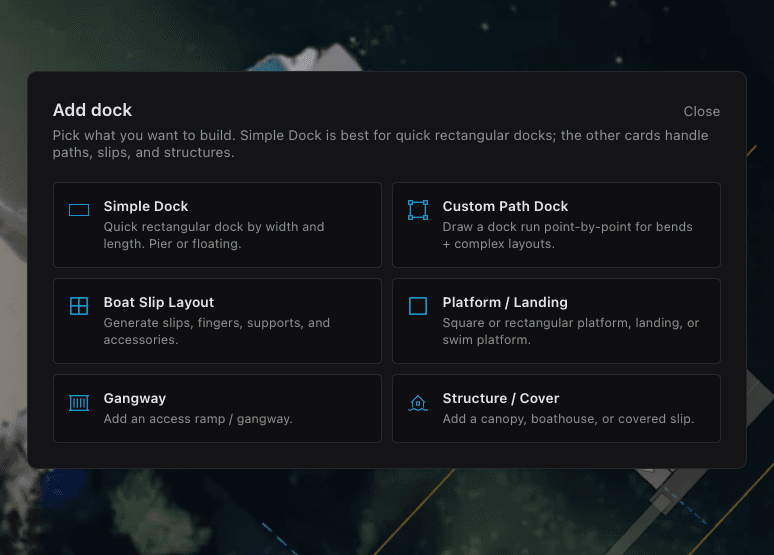
Click Add Dock in the tool rail. A quick wizard asks the essentials — Pier or Floating, supports, and the default products — then drops your first rectangular section on the canvas. Drag it roughly into position; it’ll snap flush to anything nearby.
Shape & snap sections
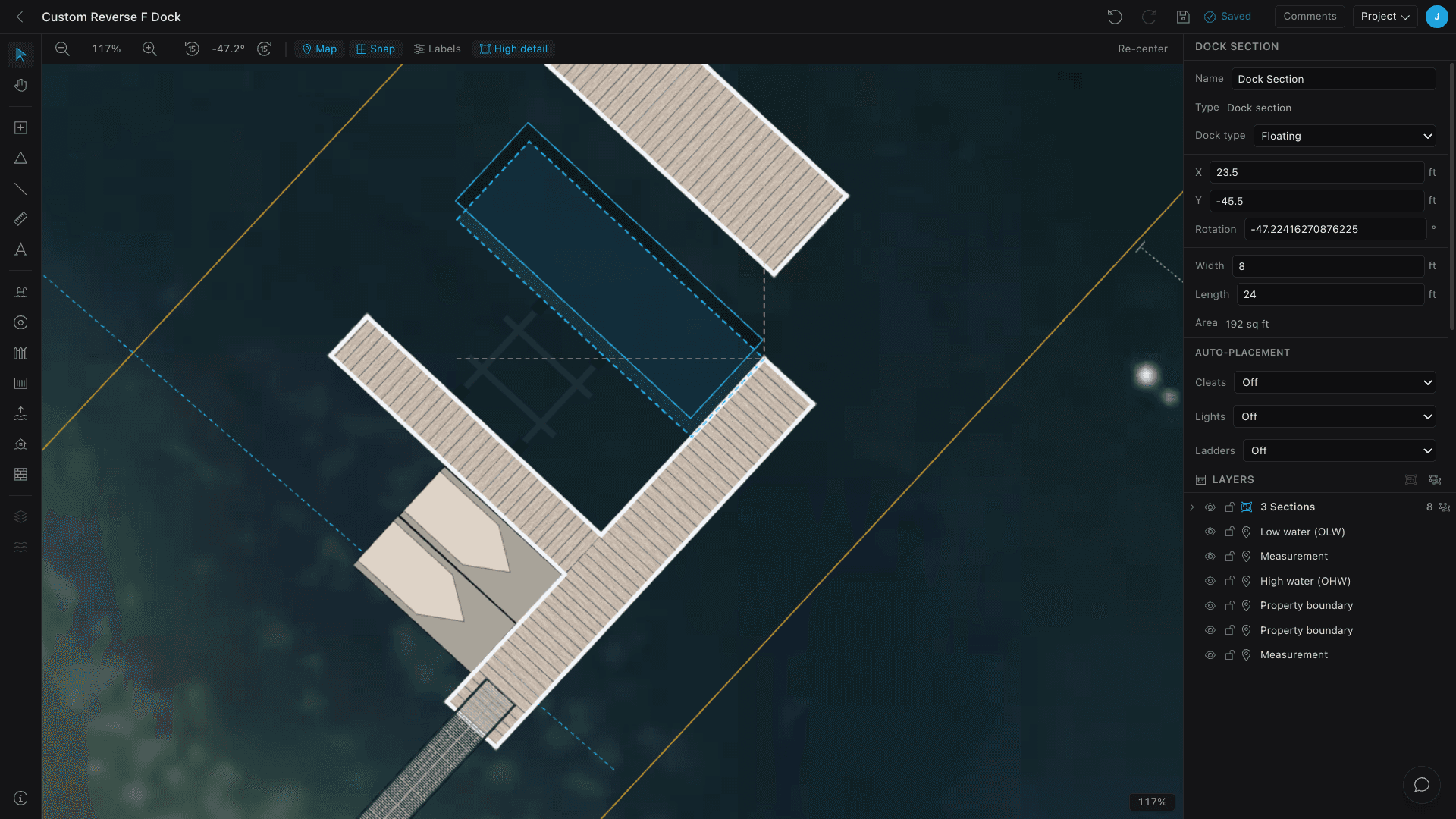
Resize by dragging the square handle at a section’s lower-right corner — dimensions update live — or type exact Width and Length in the Inspector. Add more sections and they lock flush to each other’s edges so the dock abuts cleanly. A translucent snap ghost previews exactly where a piece lands before you let go.
Pilings & accessories
Pilings and accessories are point items you drop and nudge into place. Pick Place Piling (P) and click to drop one, then set the mount — Guide or Under-dock — plus diameter, length, and driven depth. Pick Add Accessory (A) for cleats, lights, and ladders; they attach to the section beneath them and ride along when you move it.
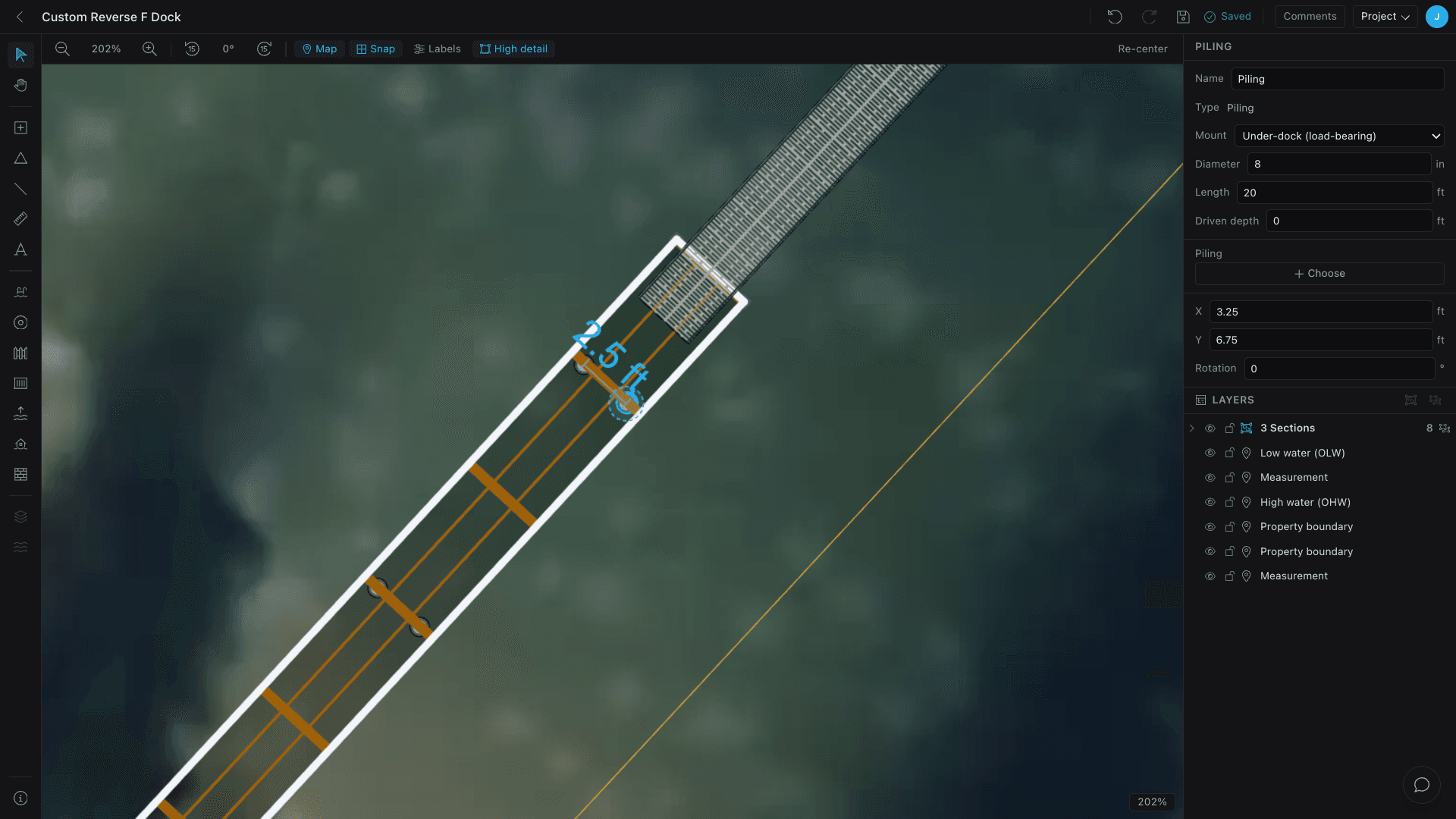
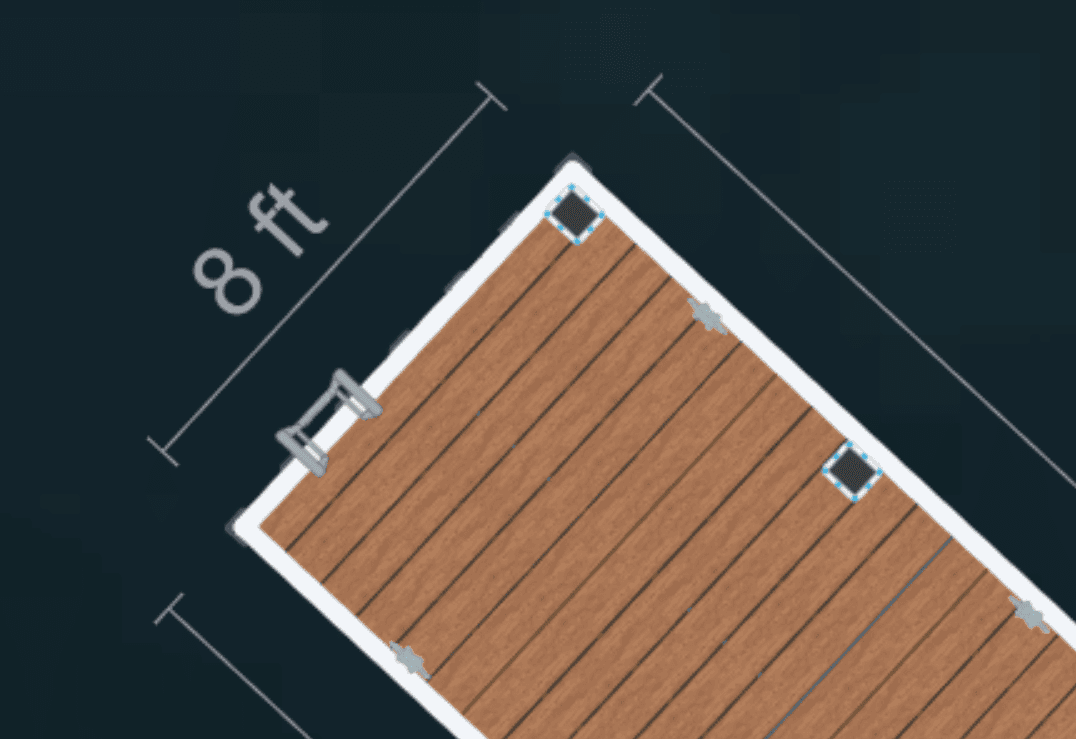
While you drag, a live distance line shows the gap to the nearest item of the same kind — so spacing pilings or cleats evenly is just reading the number.
Tune the materials
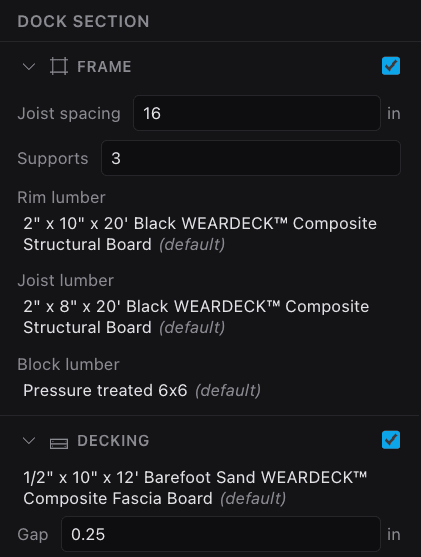
Select a section and the Inspector drives what gets generated: section type, joist spacing, decking direction, and the products used. Switch a section from lumber to composite decking, change the float type, or override a product — the take-off recalculates instantly.
Don’t want to set this per section? Default Materials in Settings let you pick a product per category once and have it apply everywhere. The Materials & products guide covers defaults and overrides in depth.
Run the take-off
Open Project menu → Take-off for the full itemized count: lumber with a cut-list and waste, floats, decking boards, hardware by kind, pilings, accessories, and gangways — broken down per section and totaled. You didn’t count a thing; the drawing did.
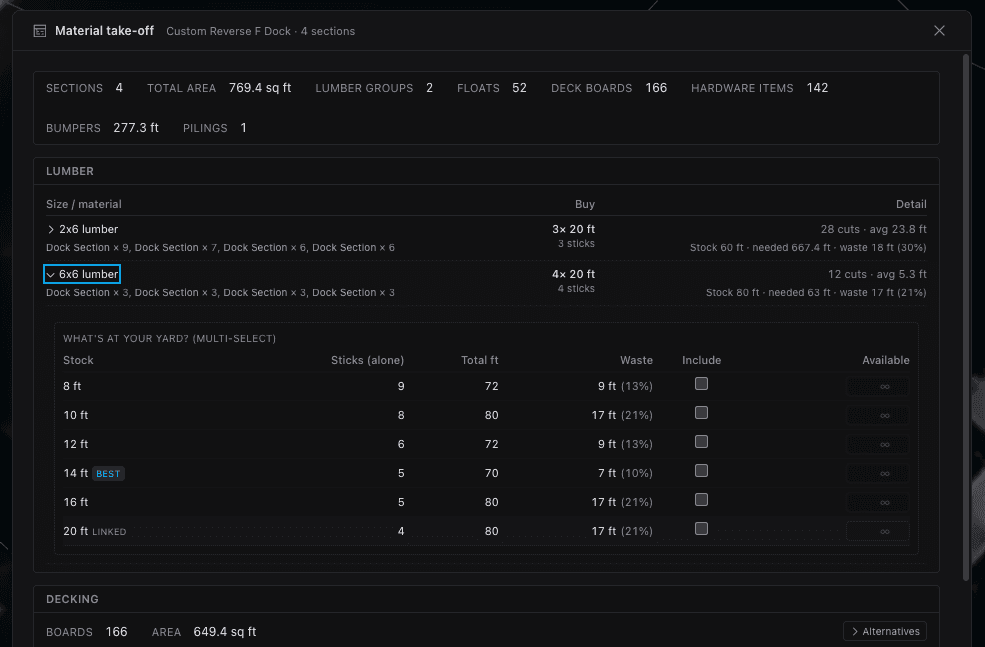
Want to understand exactly what it’s computing and how the cut-list and waste work? See the Material take-off guide.
Build the quote
Open Project menu → Quote and create a draft — it snapshots the current design, so the quote stays stable even as you keep editing. Lines come in grouped by material; add custom lines, apply adjustments for labor, waste, margin, and tax, and override any quantity or unit price.
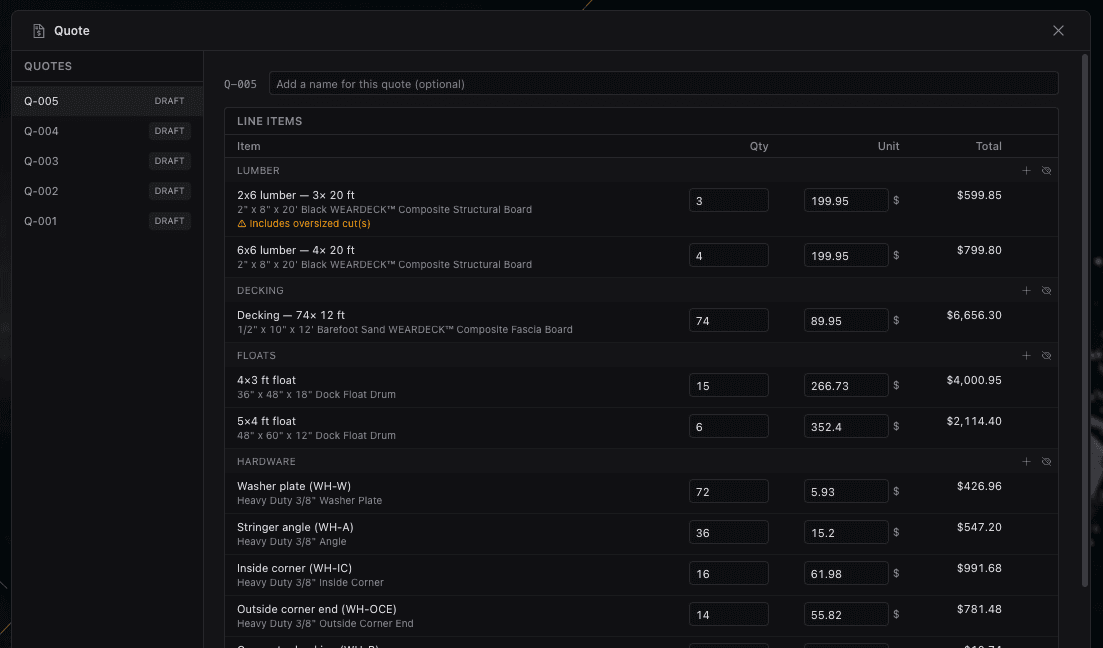
Move it through Draft → Sent → Accepted, and past quotes stay listed in the sidebar. The Quoting guide goes deeper on adjustments and price snapshotting.
Export & share
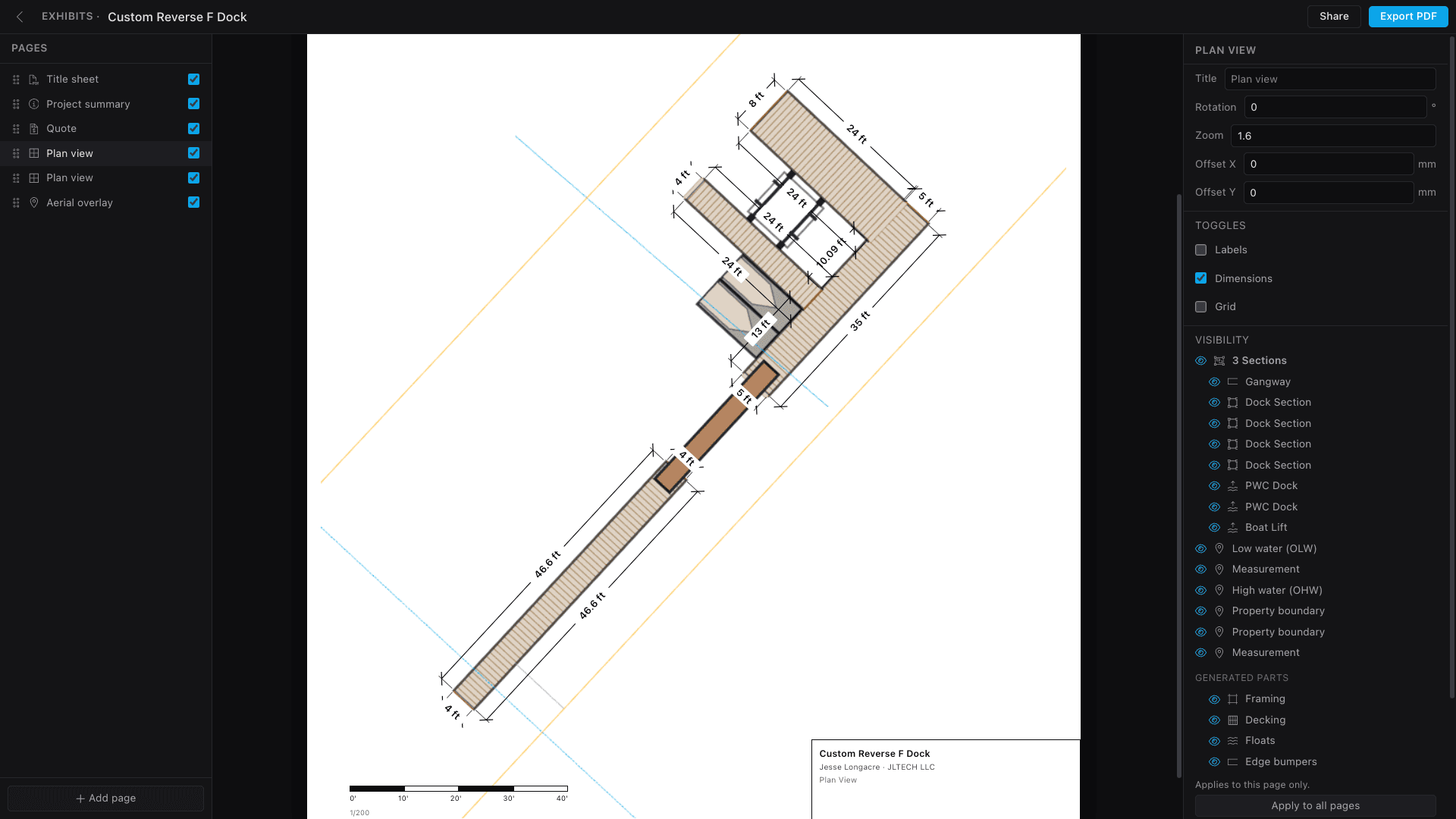
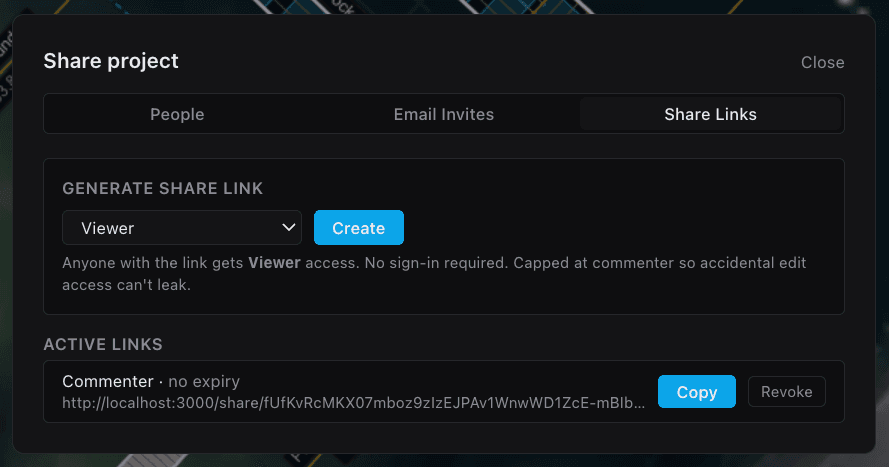
Two ways to hand it off. Export a PDF exhibit from the Project menu — a scaled plan, section views, and a take-off page with a proper title block, ready for a permit packet or a customer. Or send a share link anyone can open without an account, and invite teammates by role to comment right on the plan.
- One model end to end — the dock you draw is the take-off, the quote, and the PDF.
- Snapping, exact dimensions, and a live snap ghost make the layout fast and precise.
- Pilings, cleats, lights, and ladders attach to the dock and space evenly as you place.
- The take-off and quote recalculate the moment you change a material or a dimension.
- Export a permit-ready PDF or a no-account share link when you’re ready to hand it off.
Keep going
Material take-off
How the take-off counts decking, framing, floats, pilings, and hardware as you draw — with a real cut-list and waste.
Quoting
Roll the take-off into a quote: snapshot the design, group lines by material, add labor, margin, and tax.
PDF export & permit plans
Turn the same design into scaled, permit-ready PDF exhibits with title blocks and the views a reviewer expects.