Set your materials once, override anywhere.
Every element prices and counts through a product. Pick the products you use most as project-wide defaults, then override just the elements that differ — so a quote reflects the parts you actually buy, without re-picking lumber on every section.
Defaults & overrides
The model is simple: set sensible defaults once, then override per element where it matters. Defaults keep a whole dock consistent and let you re-price everything by changing one product; overrides handle the one section in composite or the upgraded cleat.
Setting default materials and overriding a single element’s product.
Default materials
Open Settings → Default Materials to pick a product per category — decking, floats, rim/joist/blocking lumber, bumpers, pilings, gangway parts, and more.
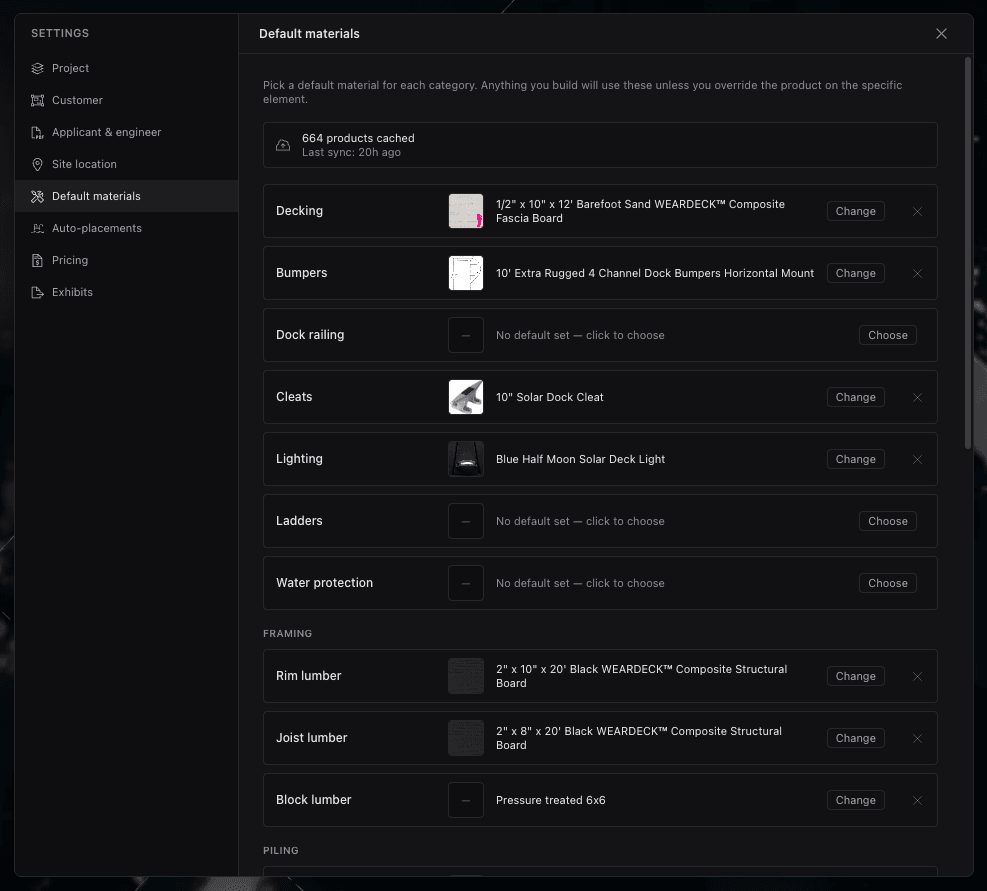
Defaults apply to every element that hasn’t been overridden, and changing one updates them all instantly — so a price change or a product swap ripples through the whole dock and its take-off at once.
Per-element overrides
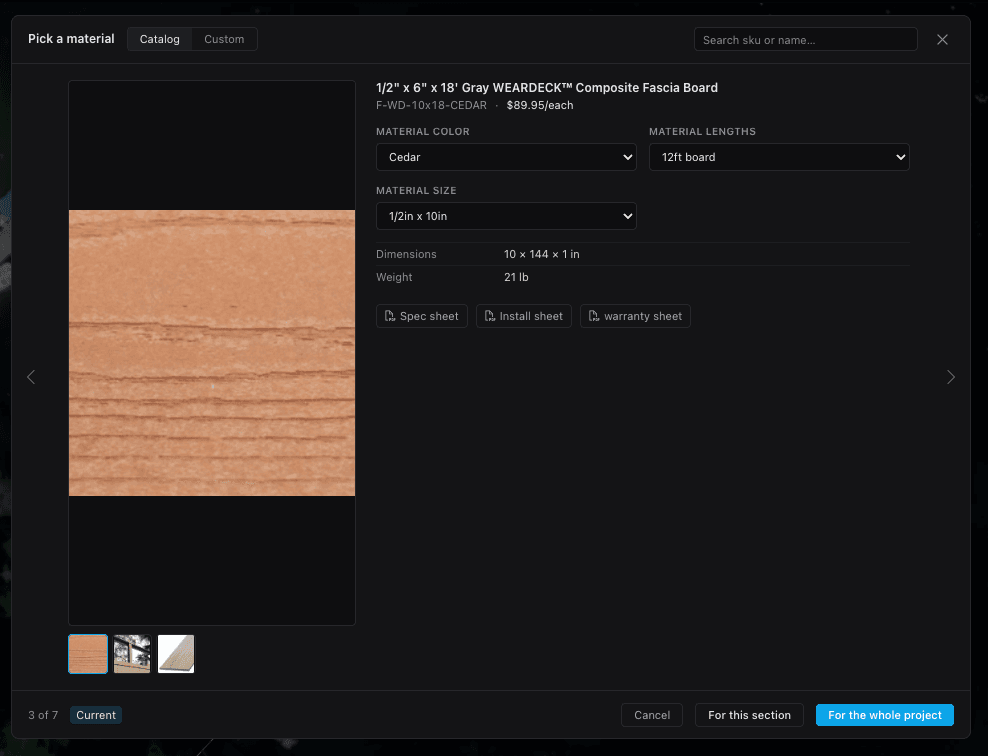
Click a product picker on a specific layer in the Inspector to override just that element. Choose a catalog product — with SKU, price, and attributes — or define a custom piece by width × height × length. Overrides survive default changes, so the one section you set in composite stays in composite even when you re-pick the default decking.
Heavy-duty & templates
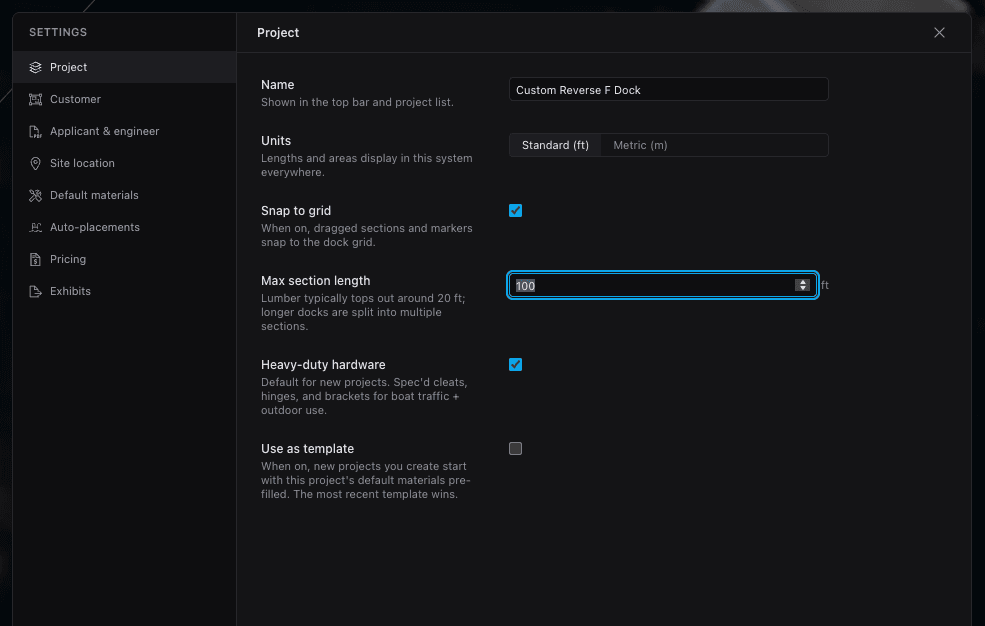
Turn on Heavy-duty hardware in Settings → Project to swap in heavy-duty cleats, brackets, and hinges for high-traffic or exposed builds — the take-off picks it up everywhere those parts appear.
Dial in a setup you reuse? Mark a project as a template so new projects start from its defaults — your standard dock, ready to go.
- Every element prices and counts through a product — defaults or an override.
- Set a default product per category once; changing one re-prices the whole dock.
- Override per element with a catalog product (SKU + price) or a custom W×H×L piece.
- Heavy-duty hardware and project templates make your standard build repeatable.
Keep going
Reusable templates
Save a dock layout once and drop it into any project — from the Add Dock wizard, a brand-new project, or a starter library shared across your whole shop.
White-label & branding
Run Dock Builder as your own — your logo and colors, branded quotes and PDFs, a web address that brings you quote leads, and a builder set up around how your shop works.
Dock permits & drawings
What a dock permit application actually asks for — a scaled site plan, a cross-section, setbacks, and water datums — and how to produce each one without a CAD seat.